
Connecting Instagram
Instructions
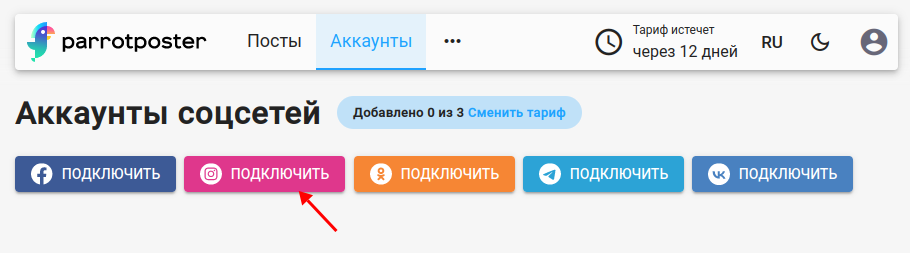
To connect Instagram, open the page for adding social networks and click Connect Instagram.
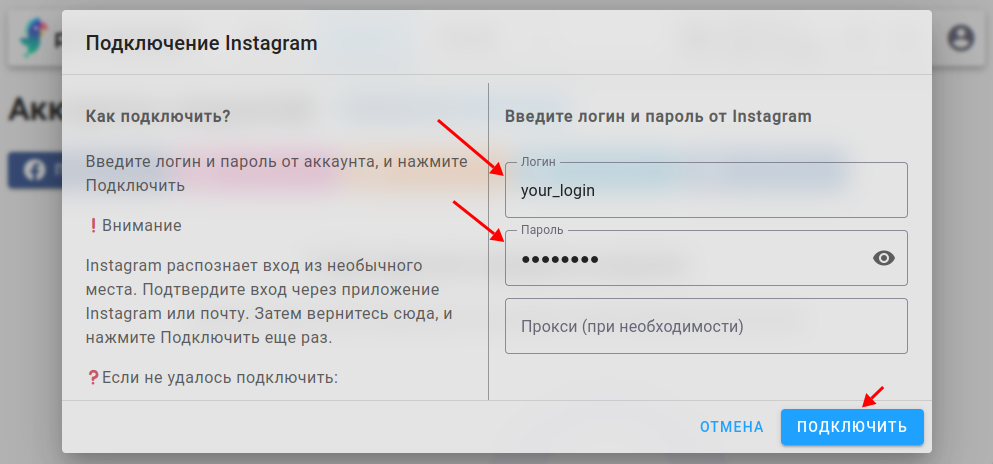
Enter your Instagram username and password in the fields below and click Connect. The Proxy field is optional; nuances are explained below.
Note
We do not store your password in the ParrotPoster database — we store a session token instead. The password is only needed for the authorization step.
Attention
Instagram may treat a login as coming from an unusual location. Confirm the login in the Instagram app or by email. Then return here and click Authorize (or Connect) again.
Using a proxy
Why it may be needed
We do not use the official Instagram API for posting. We emulate the Android app, so Instagram sees a login from a normal device.
It is important that Instagram trusts the device and location used for login. When you use Instagram in daily life and log in to ParrotPoster, at least the city of those actions should match.
Why the proxy field can be empty
Sometimes Instagram does not strongly flag a ParrotPoster login, and signing in through our servers may go smoothly without a proxy.
Where ParrotPoster servers are located
For Instagram authorization and posting we use dedicated servers, currently located in Poland.
How to use your own proxy
You can buy a proxy from various providers (search for something like “Instagram proxy”).
The provider will give you an address like login:password@address:port, where:
login:password— credentials for the proxyaddress— a hostname likedomain.comor an IP like127.0.0.1port— a number like3128
The provider may give these separately; combine them into login:password@address:port and paste that into the Proxy field.
Troubleshooting
“Wrong password” error
If you are sure the password is correct, try removing special characters from it. For example, for a password like Tb&*7]+tabqLo, try Tb7tabqLo by removing &*]+ and keeping only letters and digits.
Cannot sign in
Try the following:
- Enable or disable two-factor authentication. We recommend an authenticator app (e.g. Google Authenticator) because SMS codes are not always delivered.
- Retry authorization after 1–2 days so Instagram can “get used” to the new login location.
- Try changing your password. :::