
Connecting Telegram
Posts to Telegram are published on behalf of a bot that is added to your channel or group. ParrotPoster offers two ways:
- Use ParrotPoster bot — the simplest: you do not need your own bot. You add the ParrotPoster bot to your channel or group and paste the public link or
@username. - Use your own bot — you create a bot with @BotFather and enter its token together with the link to the channel or group. The bot name is shown as the author of posts.
The channel or group must be public
Without a public link (or @username) publishing is not possible.
Option 1. ParrotPoster bot
In Accounts click Telegram. In the connection window keep the "Use ParrotPoster bot" option.
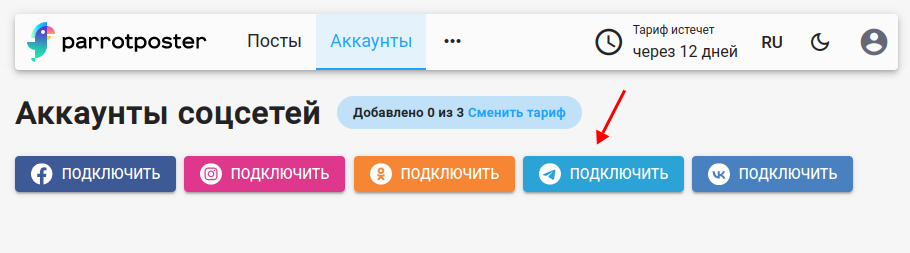
Add the ParrotPoster bot to your channel or group (click "Instruction" in the connection window for the permissions; if you cannot find the bot, write to support):
- channel — add the bot as an administrator; leave only the "Publish messages" permission;
- group — add the bot as a member.
Paste the link or
@usernameinto the "Public channel or group link, or @username" field and click Connect.
Option 2. Your own bot
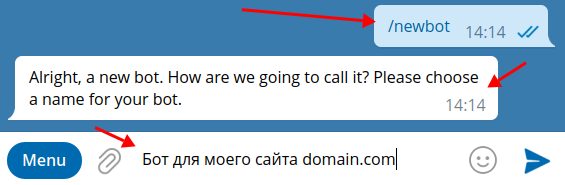
Create a bot
Open @BotFather and send
/start. It replies with a list of commands.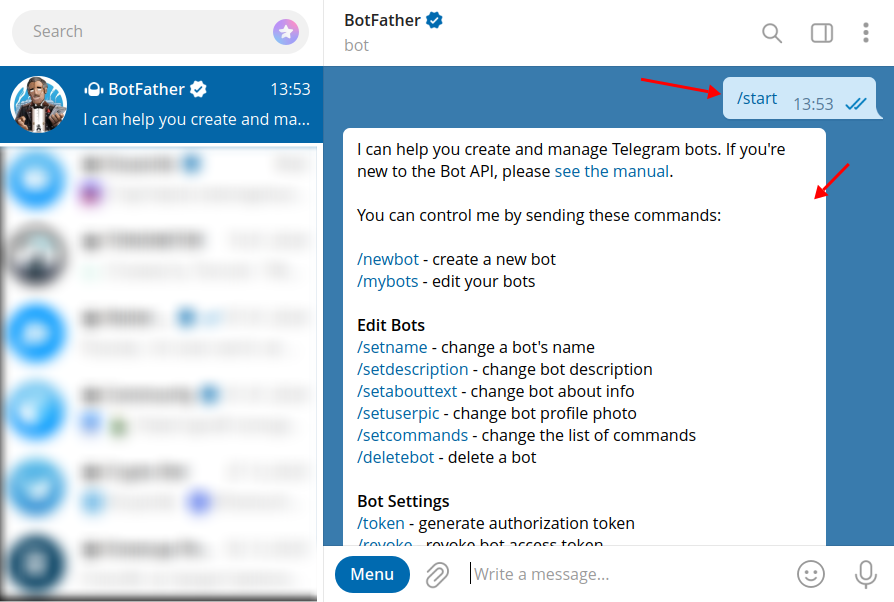
Send
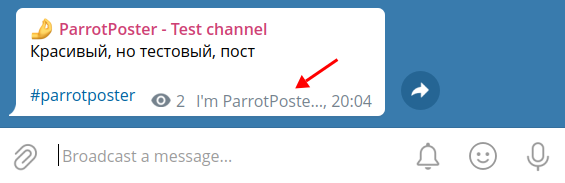
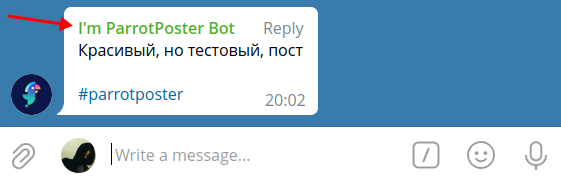
/newbotand enter a name for the bot. The name can be anything, but it is shown as the author of posts, so choose a meaningful one.What it looks like
In a channel:
In a group:
Set the bot username: Latin letters only, and it must end with
bot(for example,my_site_bot). It must be unique across Telegram — if it is taken, choose another one.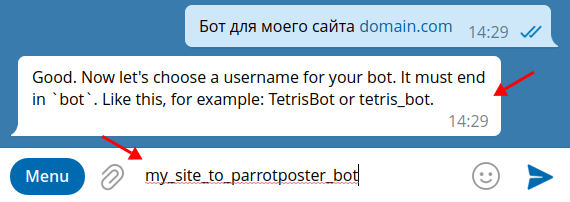
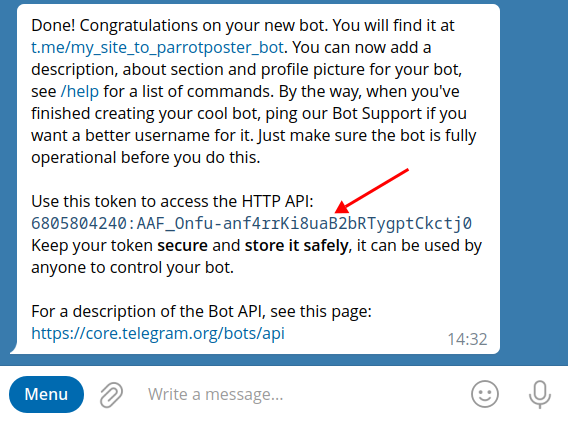
BotFather gives you the bot token. Copy it.
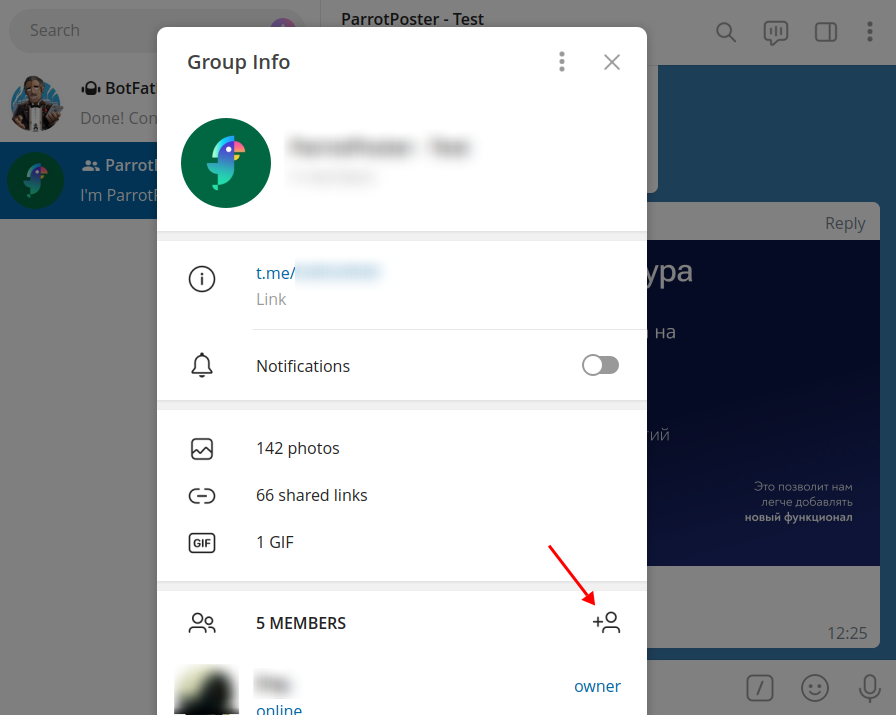
Add the bot to a group
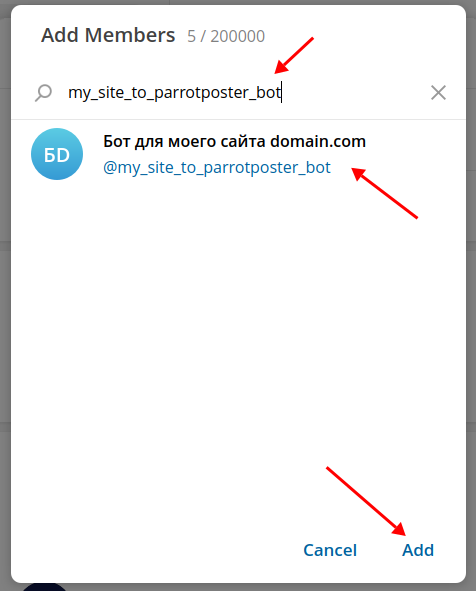
You must be a group administrator. Open the group info, click "Add members", find the bot by username and add it.
Add the bot to a channel
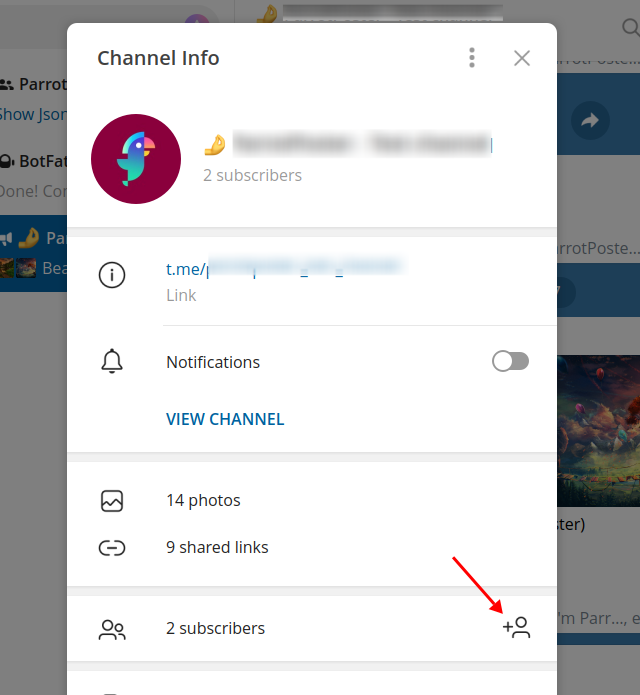
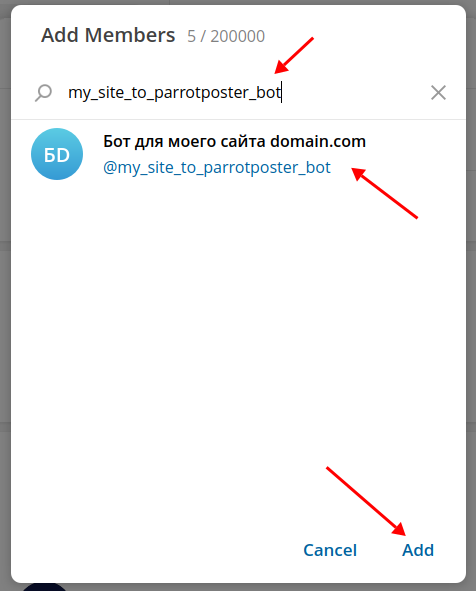
You must be a channel administrator. Open the channel info, click "Add members", find the bot and add it.
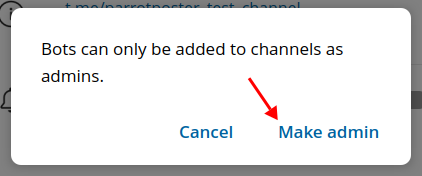
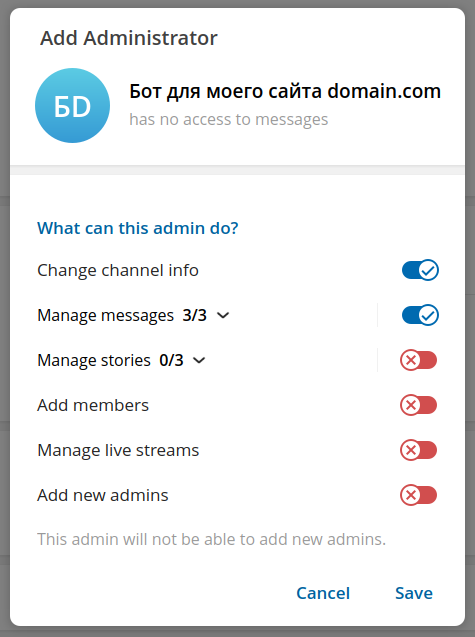
A bot can be added to a channel only as an administrator — confirm.
Leave only the "Publish messages" permission.
Connect in ParrotPoster
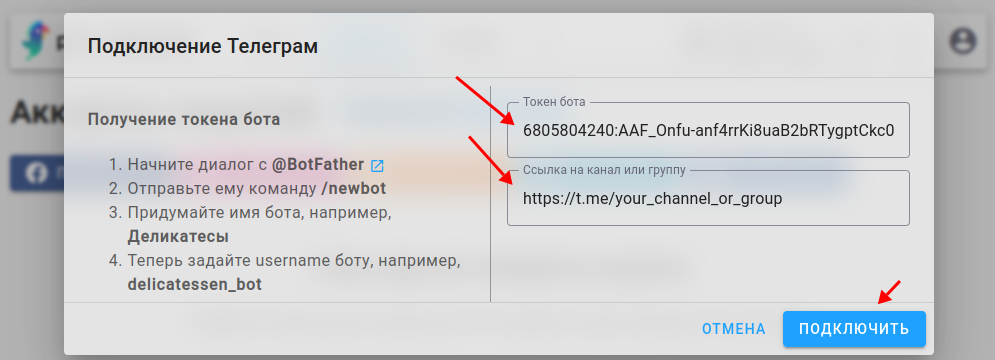
In Accounts click Telegram and choose "Use your own bot".
Enter the bot token and the link to the channel or group. Click Connect.
Done: the account appears in the list.
Reconnecting
If an account shows an error, choose Reconnect in the account card menu — the "Reconnect Telegram" window opens with your account. Check the bot token and the channel or group link and click Reconnect. The channel must stay the same: you cannot switch an account to another channel — connect another channel as a separate account.
Troubleshooting
"Failed to connect. Check that the data entered is correct"
- The bot is added to the channel as an administrator (to a group as a member) and has the "Publish messages" permission.
- The channel or group is public and the link or
@usernameis correct. - For your own bot the token is copied completely, without spaces.
I do not like the bot name in posts
The bot name is shown as the author of posts. For your own bot change the name in @BotFather; the ParrotPoster bot name cannot be changed.
Dzen
A Telegram channel is the basis for publishing to Dzen: see Dzen.