
Connecting VKontakte
The connection uses the official VKontakte authorization: you never enter your VK password in ParrotPoster.
Instructions
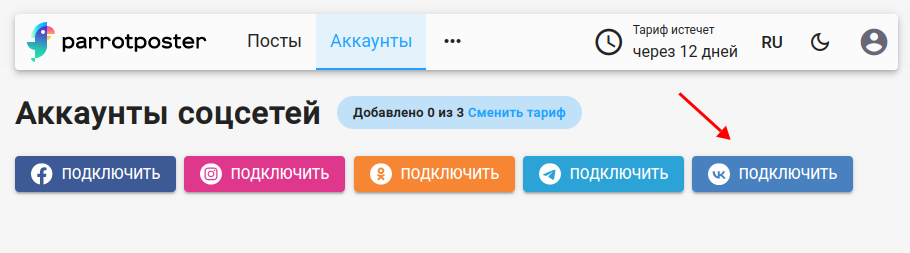
Open the Accounts section and click the VKontakte button above the account list.
If you already have an active VKontakte connection, ParrotPoster offers a choice ("Existing connection"): Use the existing session or New connection. Choose "Use" if the pages you need are available in the profile that is already connected.
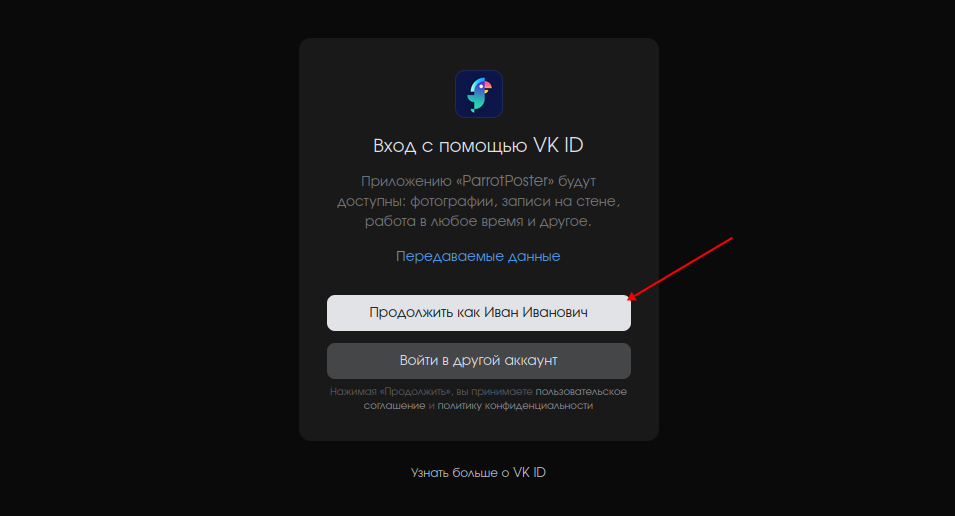
VKontakte asks you to confirm access for ParrotPoster. Click Continue.
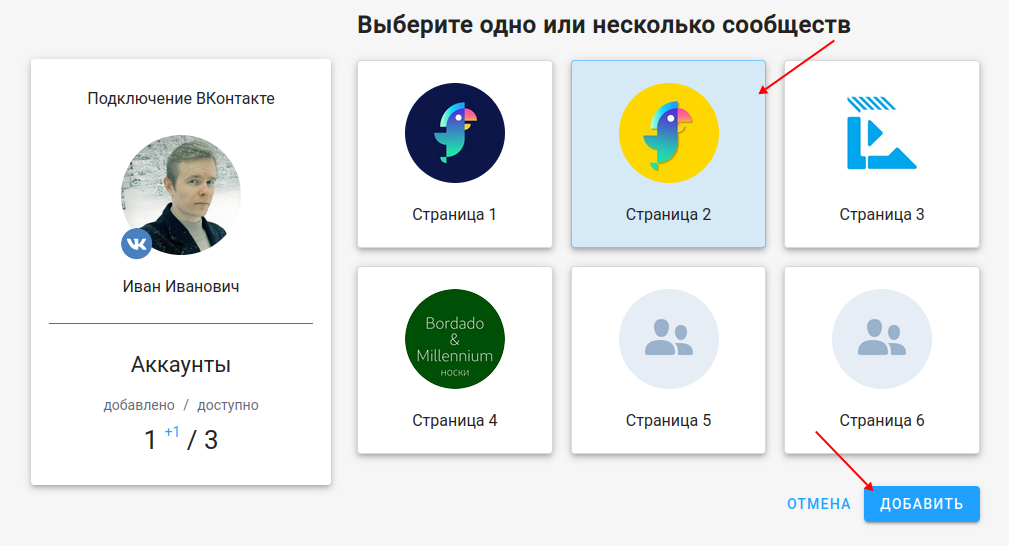
On the "Select communities to add" page, tick the VKontakte pages you need and click Add. Pages that are already connected are hidden; you can show them with "Show added".
Done: the selected pages appear in the account list.
Tariff limit
The "Accounts" counter (added / available) is shown on the right. If you select more pages than your tariff allows, the "Add" button becomes inactive and an "Upgrade plan" link appears below.
Reconnecting
If an account shows an error (for example, access has expired), the account card menu gets a Reconnect item. ParrotPoster first tries to restore access through another working VKontakte connection and only asks you to authorize again if that fails. See the accounts overview.
Troubleshooting
No pages available to connect
Check the following:
- You are a member of the group or page (even if you created it).
- You have moderator or administrator rights.
The wrong VKontakte profile was connected
In the "Existing connection" window choose New connection and authorize with the right profile. If VKontakte signs you into another profile right away, sign out of it in the browser and try again.