
ParrotPoster plugin for WordPress
The plugin connects your WordPress site to ParrotPoster: the service's app opens right inside the admin panel, you can publish entries to social networks in one click, and autoposting rules work in the background.
Plugin page in the WordPress directory
Requirements
- WordPress 5.3 or newer;
- PHP 7.4 or newer;
- site administrator rights (to connect the site and change plugin settings).
Installation
In the WordPress admin panel open Plugins → Add New Plugin.
Type
parrotposterin the search field and find "ParrotPoster - Auto Post to Social Media". Click "Install Now".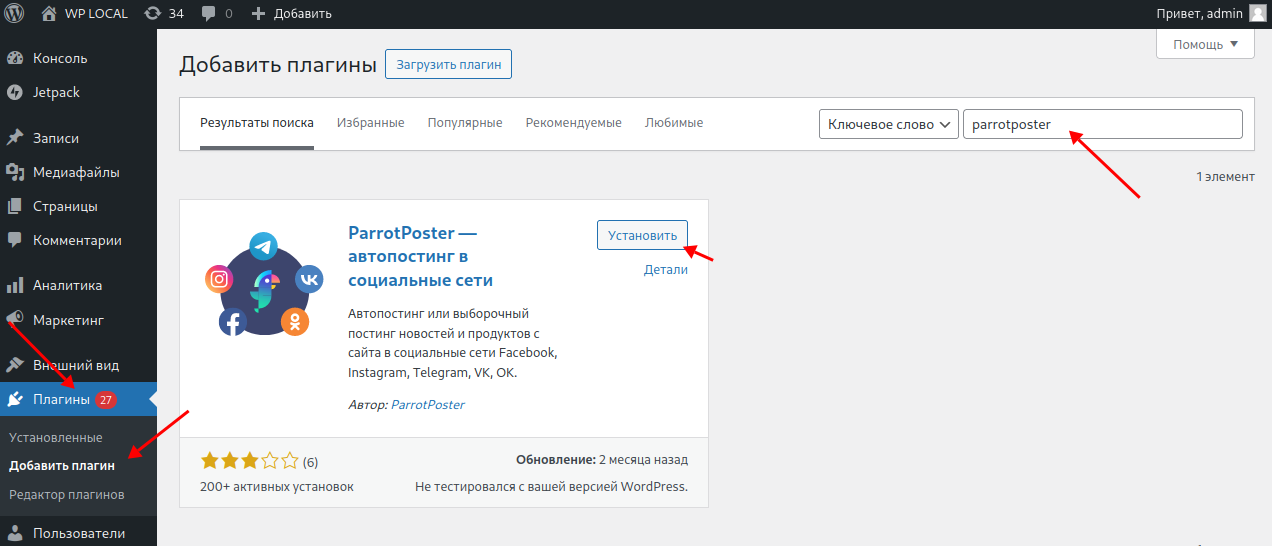
Click "Activate".
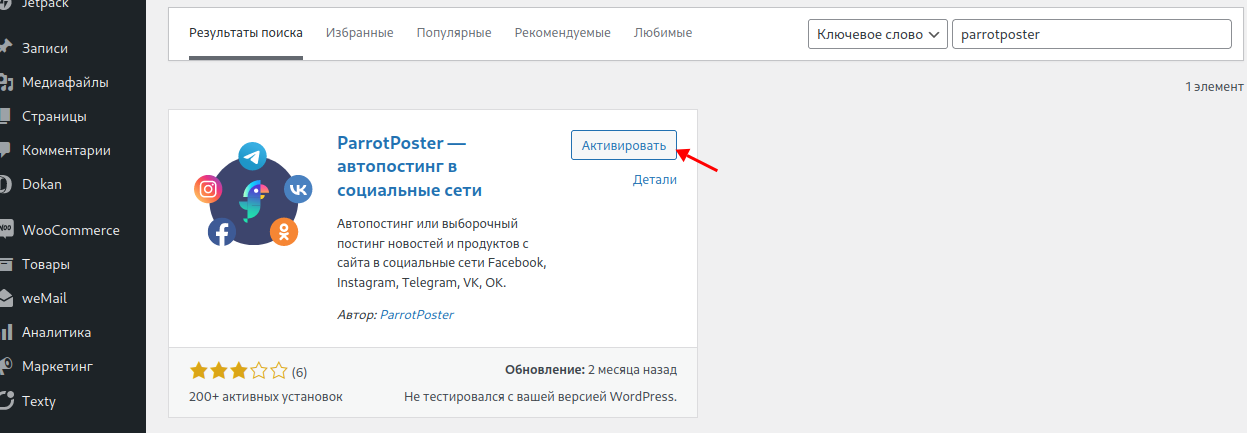
A ParrotPoster item appears in the left menu.
First launch
Open ParrotPoster. Until you sign in, the plugin shows the authorization screen (an embedded window of the web app):
- "Start as an anonymous user" — a quick start without entering any data;
- "Login via Google";
- "Login via ParrotPoster" — email and password login; you can register there too.
After you sign in, the site connects to ParrotPoster automatically. No extra steps are needed.
Open ParrotPoster → Settings and make sure the "Site integration" block shows the "Connected" status.
New users get a free 14-day trial. The same email and password work for signing in to the web app at parrotposter.com.
There is no "Profile" page
The plugin has no "Profile" page. See your account data, plan and its expiry date in ParrotPoster → Settings, and your name, password and sessions in the web app.
Plugin menu
| Item | What it is |
|---|---|
| Posts | Manual posts, drafts, calendar — Posts. An embedded window of the web app |
| Automation | Autoposting rules — Automation. An embedded window of the web app. It can be replaced with "Scheduler" — see below |
| Accounts | Connecting social networks — Accounts. An embedded window of the web app |
| Tariffs | Billing. An embedded window of the web app |
| Settings | The plugin's own page: account, site connection |
| Help | Short answers to common questions |
The plugin menu appears after you sign in. The plugin has no ParrotAI, "Support" or web app settings sections — they are available in the web app.
Connecting social network accounts
Open ParrotPoster → Accounts and click "Connect" next to the network you need. Detailed instructions and specifics are in Accounts: VKontakte, Telegram, Facebook, Instagram, Odnoklassniki, Dzen, MAX.
Publishing from the post screen
You can publish any saved entry (or another post type the plugin works with).
- In the posts list a ParrotPoster column is added to the table. Click the icon in the row of the entry you need.
- On the edit screen the ParrotPoster box on the right has a "Publish to social networks" button and a "Show published posts on social networks" link that reveals the publishing results for each network.
What opens next depends on the site's autoposting scheme:
- "Automation" mode. The "Publish post" window opens. If the entry has been published before, the "On social networks" tab shows the results with links to the posts, and the "Publish again" tab lets you run publishing once more. Choose an automation ("Choose an automation") and click "Publish". If there are no suitable automations, the window offers "Open Automation" — create a rule, see Automation.
- "Scheduler" mode. The window offers to publish through previously created templates or to click "Publish manually", which opens the manual post form.
The publishing result appears in ParrotPoster → Posts.
Site connection and status
ParrotPoster → Settings has three blocks:
- Account — your name, email, plan, its expiry ("Expiry at" with days left) and the number of connected accounts. It also has the "Open web application" button (the web app in a new tab) and "Logout" from the service on this site.
- Site integration — the "Connected" or "Not connected" status. For a connected site it shows when the last "WordPress to ParrotPoster" and "ParrotPoster to WordPress" requests happened. If the site is not connected, click "Connect site".
- Danger zone → "Disconnect site" — disconnects the site from ParrotPoster automation. Your account stays active. To connect the site again, click "Connect site" in the same block. After disconnecting, the site has the "Disabled" status on the "Integrations" page of the web app — it can only be enabled again from the plugin.
Site on HTTP
If the site works over HTTP, the "Site integration" block shows a warning: ParrotPoster does not call the site itself, and data is exchanged when WordPress polls the service. Enable HTTPS and then connect the site again ("Connect site") so the service stores the HTTPS address. The same warning appears if the site address changed after connecting (for example, a domain change): click "Connect site".
Which autoposting scheme you have
The plugin has two autoposting schemes, and the menu item shows which one is on:
- "Automation" — the new scheme: the same automations as in the web app. It is described in Automation (in the plugin the same wizard opens as an embedded page).
- "Scheduler" — the classic scheme with autoposting templates: Classic autoposting for WordPress. Its "Autounload" tab is not used.
The switch happens automatically when the site is connected: if the site has no enabled classic scheduler templates, the plugin moves to "Automation". If there are templates, "Scheduler" stays, and its page offers to migrate the templates to automations or start fresh. If the new scheme does not suit you, you can go back with the "Revert to Scheduler" button in ParrotPoster → Settings (the block is visible while the plugin has enabled scheduler templates).
Troubleshooting
| Symptom | What to do |
|---|---|
| "Settings" shows "Not connected" | Click "Connect site". If that does not help, "Logout" and sign in again |
| A warning about HTTP or a changed site address | Enable HTTPS and click "Connect site" — see above |
| No ParrotPoster item, or no "Posts" and "Accounts" in the menu | You have not signed in yet — open ParrotPoster and authorize |
| Publishing fails or an account cannot be added | Check the plan expiry and account limit in Settings; for plans and payment see Billing |
| Automation does not run | See Automation troubleshooting |
| A social network publishing error | See the instructions for the network in question |
Cannot find an answer? Write to support@parrotposter.com.