
Quick start: new posts go to social networks right away
This scenario is Instant mode: as soon as a new published post (not a draft) appears on your site, ParrotPoster prepares a social post and sends it to the selected accounts.
Before you start, prepare a source and accounts.
The other modes (Archive, Hybrid, Digest) are described separately: they use the same steps plus a Schedule step. For an RSS feed the steps are the same, but the Mode step is skipped — see RSS feed as a source.
Wizard steps
The Create automation wizard walks through these steps in this order: Source → Mode → Record selection → Accounts → Template. A sixth step, Schedule, appears only for Archive, Hybrid and Digest.
1. Create an automation
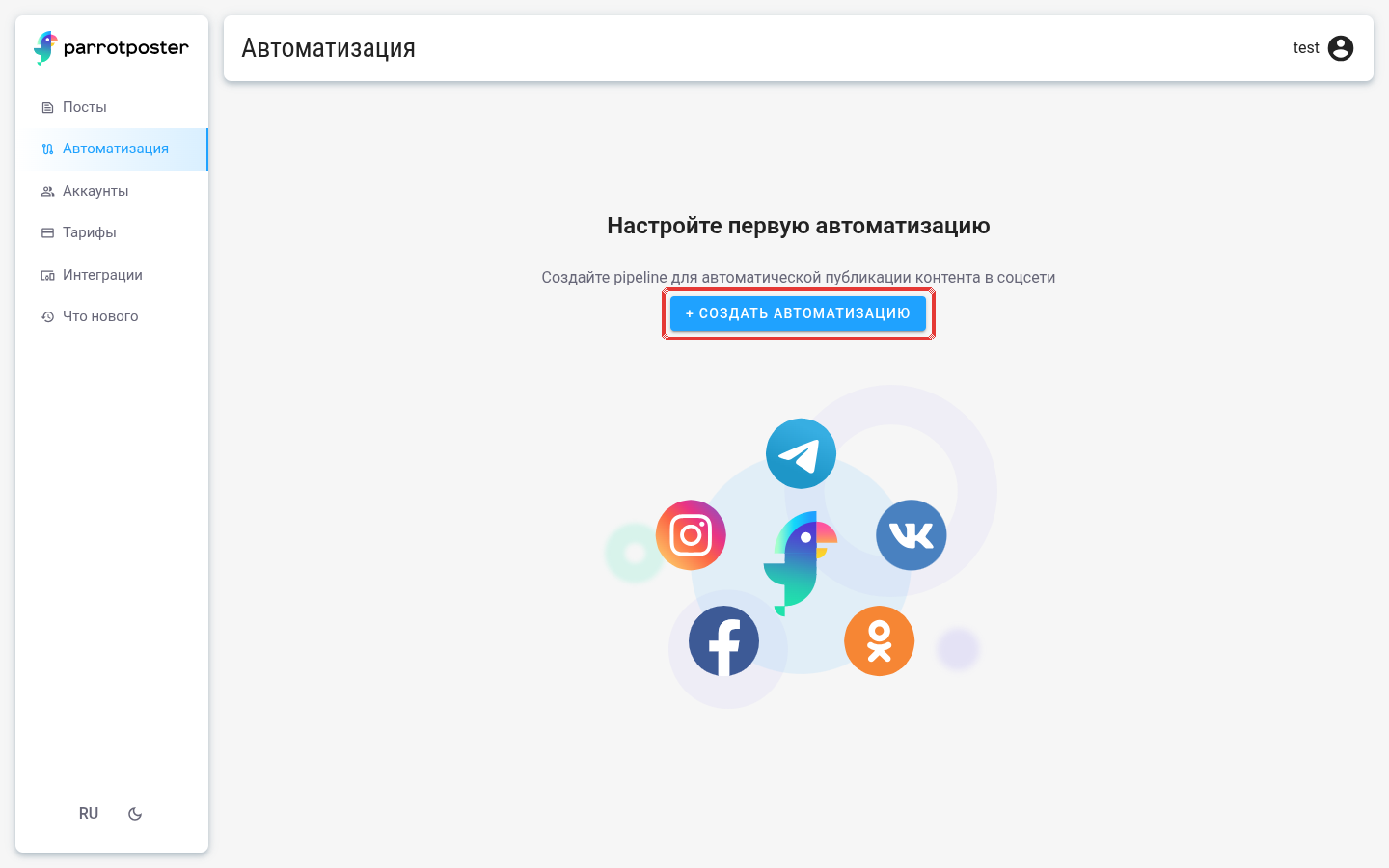
Open the cabinet → Automation. If there are no rules yet, you will see Set up your first automation. Click Create automation.
2. Source
The Content source step.
- In Source type choose Connected site (the RSS feed option is described separately). The WordPress plugin does not have this field: the site is already chosen, you only pick the record type.
- In Site choose the connected site. If there is only one, it is selected for you.
- In Record type choose what to publish. For a regular blog that is Posts (post); the list also has Pages (page) and other types the site provides to ParrotPoster (for example, WooCommerce products).
- Click Next.
If there are no sites, the wizard tells you to install the WordPress plugin first. If there is a site but record types do not load — see troubleshooting.
3. Mode: Instant
The Automation mode step. Click the Instant card and then Next.
The other cards (you can ignore them for now):
- Archive — processes only existing items on a schedule.
- Hybrid — combines instant publishing of new items and scheduled archive backfill.
- Digest — bundles multiple items into one post on a schedule.
The mode cannot be changed after creation. If you need another one, create one more automation.
4. Record selection: skip for now
The Which records to publish step. Leave the conditions empty and click Skip: then all records of the chosen type go to social networks.
Filters are useful later: for example, only a certain category or posts with a cover. You can add them in the created rule on the Content tab.
5. Accounts
The Publish to step. Select one or more accounts and click Next. The post goes to all of them.
No cards? Connect social networks under Accounts (how) and come back to the wizard. You cannot pick an inactive account: reconnect it or choose another one.
6. Template and saving
The Publication template step: text and options on the left, Preview for the selected networks on the right. For a quick start it is enough to pick a ready-made preset, for example Title + excerpt, and click Save.
What you can do right away if the preview is not what you want:
- click Insert field and add, for example, a link to the post;
- turn on Add media from the article (media is required for Instagram);
- pick another preset.
Everything about the editor is on the publication template page.
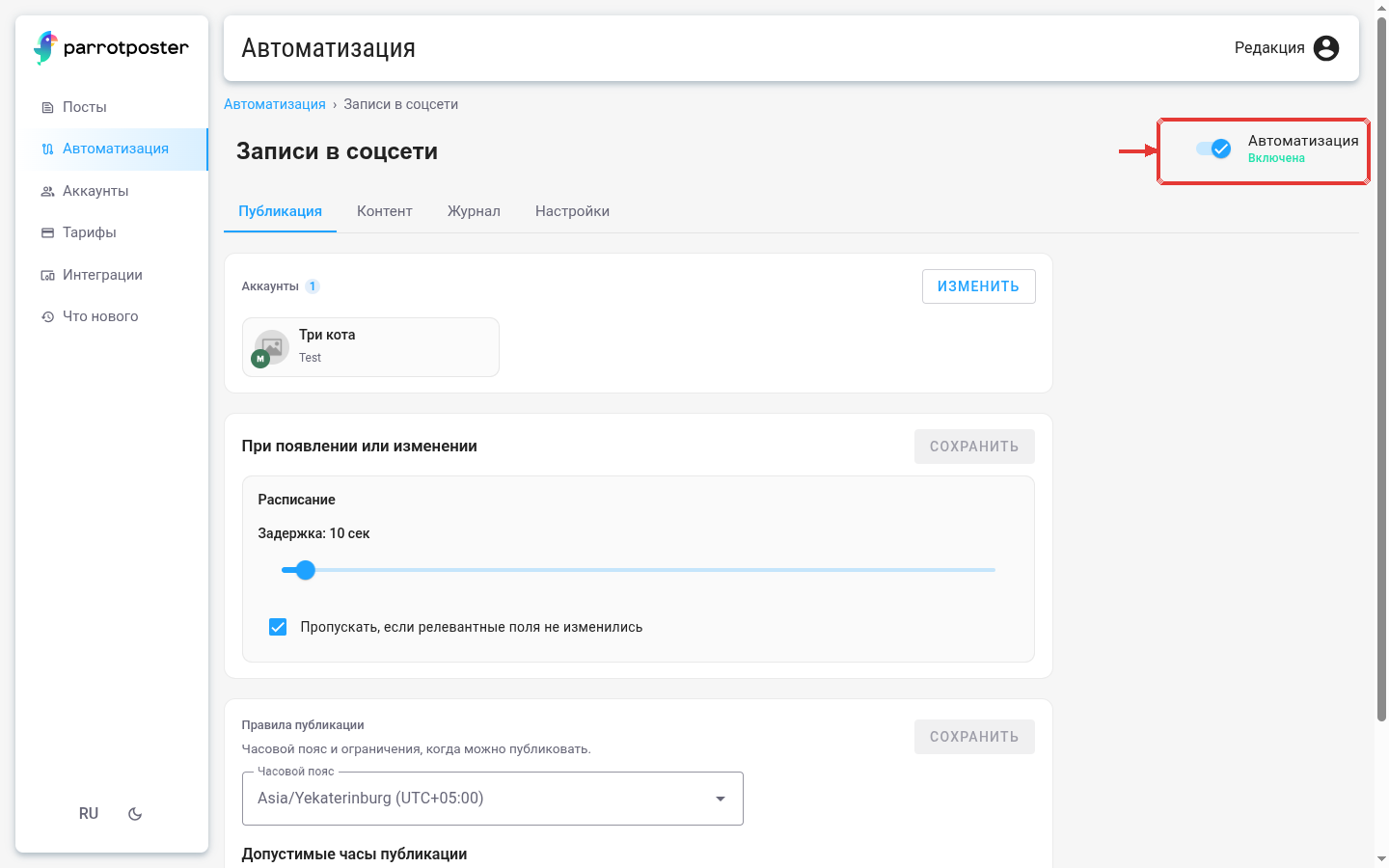
After saving, the automation page opens. The default name is Autopublish #1, status Enabled. The wizard tells you the automation will run when a new item is published; existing items will not be sent.
7. Check that it works
- Publish a test post on your site (not a draft).
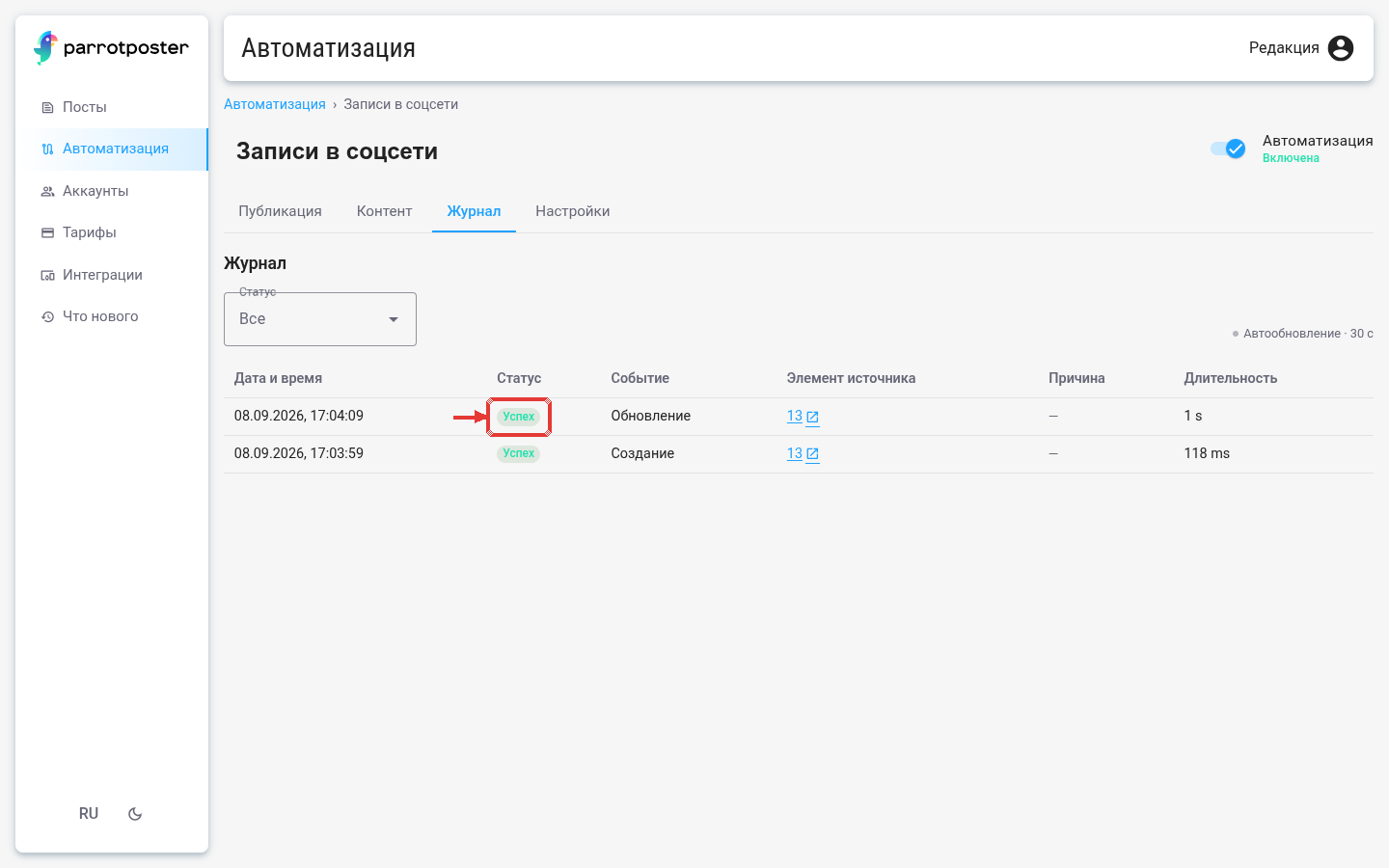
- In the cabinet open the automation → Journal tab.
- A run row should appear. Success means the post was created and sent to social networks.
Until a new post appears, the card shows The automation is waiting for its first new item: in Instant mode, items published earlier are not sent (for them you need Archive or Hybrid).
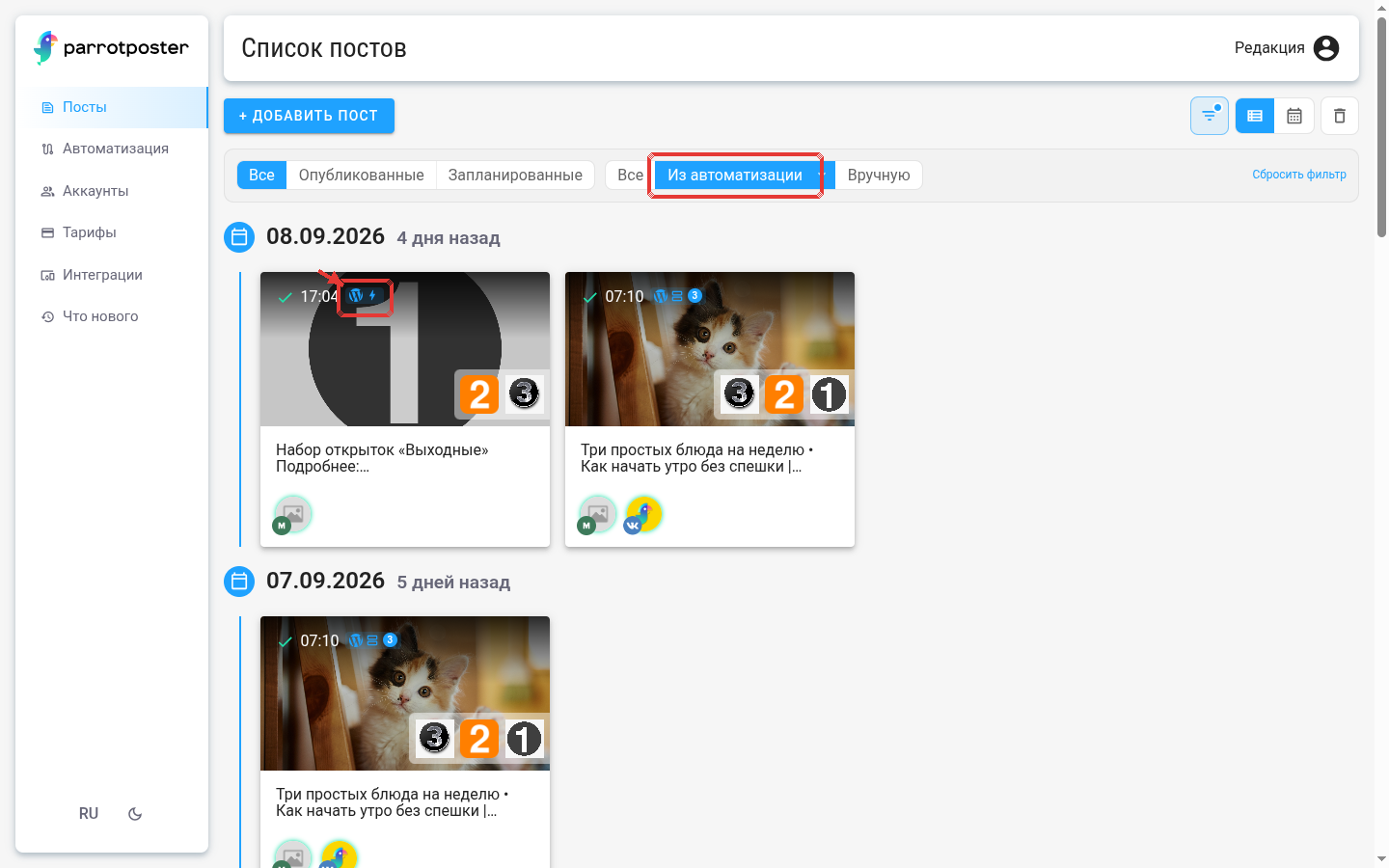
The same post appears under Posts with the origin label Automation · Instant. You can filter automation posts: Post origin → From automation.
Tips
A run may not appear immediately. The site reports the new post, ParrotPoster waits briefly so it does not publish on every draft save, and then creates the post. If ParrotPoster cannot reach your site directly, the run waits until the site picks up the task itself (the journal shows Waiting for plugin poll) — see troubleshooting.
If the journal is empty, or the status is Skipped or Error — open troubleshooting.
What next
- Publication template — text, media, per-network options, AI.
- After setup — journal, manual run, disabling.
- Modes — a different publishing rhythm.