
Connecting Instagram
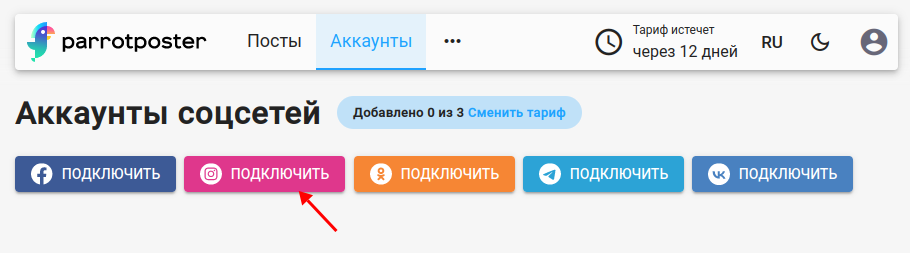
In Accounts click Instagram. In the "Connect Instagram" window choose a method in the "Select connection type" list:
| Method | When to choose |
|---|---|
| Authorization through Instagram (default) | The recommended option: more secure and stable. Publishing works, but a post cannot be updated (deleting is also not supported with this method). |
| Through login/password | When you need the ability to delete published posts and the official login does not suit you. You need a login and password and, if necessary, a proxy. |
| Via Session ID (if SMS codes don't arrive) | When Instagram does not send a verification code during login with login and password. No password needed. |
Instagram requires media
A post cannot be published to Instagram without a photo or video: attach at least one file to the post. Detailed limits are in the accounts overview.
Option 1. Authorization through Instagram
- Choose "Authorization through Instagram" and click Connect.
- Sign in to Instagram and confirm access for ParrotPoster.
- If you already have an active Instagram connection, ParrotPoster offers to Use it or create a New connection.
- On the "Select communities to add" page tick the accounts you need and click Add.
Limitation
This method does not support updating or deleting posts in the social network: if you change a post in ParrotPoster, the post in Instagram does not change.
Reconnecting (card menu → Reconnect) works like for VKontakte, Facebook and Odnoklassniki: ParrotPoster first tries to restore access automatically and only then asks you to authorize again.
Option 2. Through login/password
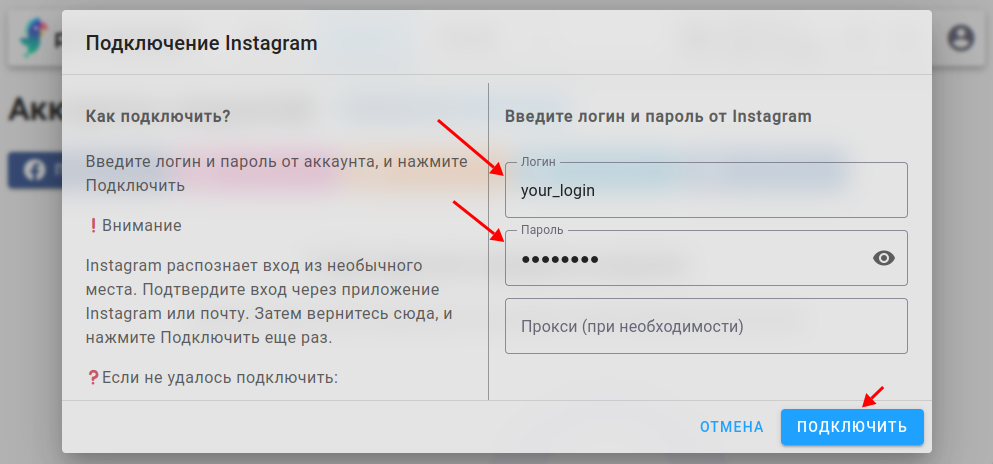
- Choose "Through login/password" and enter your Instagram Login and Password.
- If necessary, set up a proxy (the "Proxy (optional)" field).
- Click Connect.
The password is not stored
The password is needed only during authorization. ParrotPoster stores a session token, not the password.
In the cabinet such an account is shown as "Instagram (connected via login/password)".
Login confirmation
Instagram may not trust a new login location. Then the window shows an additional step — complete it and click Continue.
Two-factor authentication ("Two-factor authentication is required"):
- A code from SMS or WhatsApp on the phone linked to the account (a backup code also works). If there is no code, click Continue again — a new code is requested.
- A code from an authenticator app (Google Authenticator, Authy, etc.) or a backup code. If you use such an app, the code comes from there, not from SMS.
Login confirmation ("Instagram asks you to confirm this login"):
- Instagram may have sent a code by SMS or to the email linked to the account (check Spam too). Enter it in the "Code" field and click Continue. If there is no code, click Continue again.
- Sometimes confirmation is requested only in the app, with no SMS: open Instagram on a phone where you are already logged in, check notifications or Settings → Security → Login requests, approve the attempt ("It was me") and click Continue in ParrotPoster.
- A browser verification link may not help here: Instagram ties the check to the emulated phone, not to your browser. If "Login requests" is empty, change the proxy (preferably no proxy, or a mobile/residential one in the account's country).
- If Instagram has not accepted the confirmation yet, the window reminds you — confirm in the app or enter the code and try again.
If the verification code never arrives, connect the account via Session ID.
Using a proxy
Why you may need it
For this method ParrotPoster emulates a mobile app, so Instagram must trust the "device" and the place the login comes from. The closer the login location is to where you normally use Instagram (at least the same city), the lower the risk of a block. For stable operation and to reduce the risk of account blocks, a dedicated proxy is recommended.
Why the field is optional
Sometimes Instagram does not suspect a login from ParrotPoster servers and the connection succeeds without a proxy.
How to set a proxy
- In the "Proxy (optional)" block click Configure (while no proxy is set it says "No proxy configured").
- Fill in the fields as in your provider's panel: Protocol (HTTP, HTTPS, SOCKS4, SOCKS5 or "No proxy"), Host (IP or domain, e.g.
proxy.example.com), Port (1 to 65535), Username and Password (optional). - Or switch to "Paste proxy URL" and paste the whole address, e.g.
socks5://user:pass@host:1080, or the short formlogin:password@ip:port— the HTTP scheme is added automatically. Example:login:pass@127.0.0.1:30001. - Click Save. The Clear button removes the proxy.
You can buy a proxy from "Instagram proxy" services; the provider gives you a host, port, username and password.
Testing a proxy
The Test proxy button checks that the Instagram site opens through this proxy. It does not guarantee that Instagram will accept the login or publishing: only route availability is checked. Without a proxy the direct connection is checked.
Option 3. Via Session ID
Choose "Via Session ID (if SMS codes don't arrive)", paste the value of the sessionid cookie into the "Session ID" field and click Connect. No password needed. How to copy the value is described in a separate guide.
Reconnecting
If an account connected by login/password or Session ID shows an error, choose Reconnect in the card menu — the "Reconnect Instagram" window opens with the "Through login/password" and "Session ID" tabs. Enter the login and password (or a new Session ID), pass the login confirmation if needed and click Reconnect. A previously set proxy is kept if you do not specify a new one.
For an account connected via "Authorization through Instagram", reconnecting is done by authorization, as for VKontakte.
Troubleshooting
"Invalid password" error
If you are sure the password is right, temporarily change it to a password without special characters: for example, from Tb&*7]+tabqLo keep only letters and digits (Tb7tabqLo).
"Failed to connect. Check that the data entered is correct"
Try the following:
- Enable (or disable) two-factor authentication. An authenticator app (Google Authenticator, etc.) is better because SMS does not always arrive.
- Try again in 1–2 days so Instagram "gets used" to the new login location.
- Change the password.
- Add a dedicated proxy or, on the contrary, remove the current one.
- Connect the account via Session ID or via "Authorization through Instagram".
SMS or verification code does not arrive
Click Continue again — the code is requested again. If that does not help, check WhatsApp, email and "Login requests" in the Instagram app, or connect the account via Session ID.
"Failed to reconnect. Check your login, password, and proxy"
Check the data and the proxy (the Test proxy button) and change the proxy if necessary.