
After setup
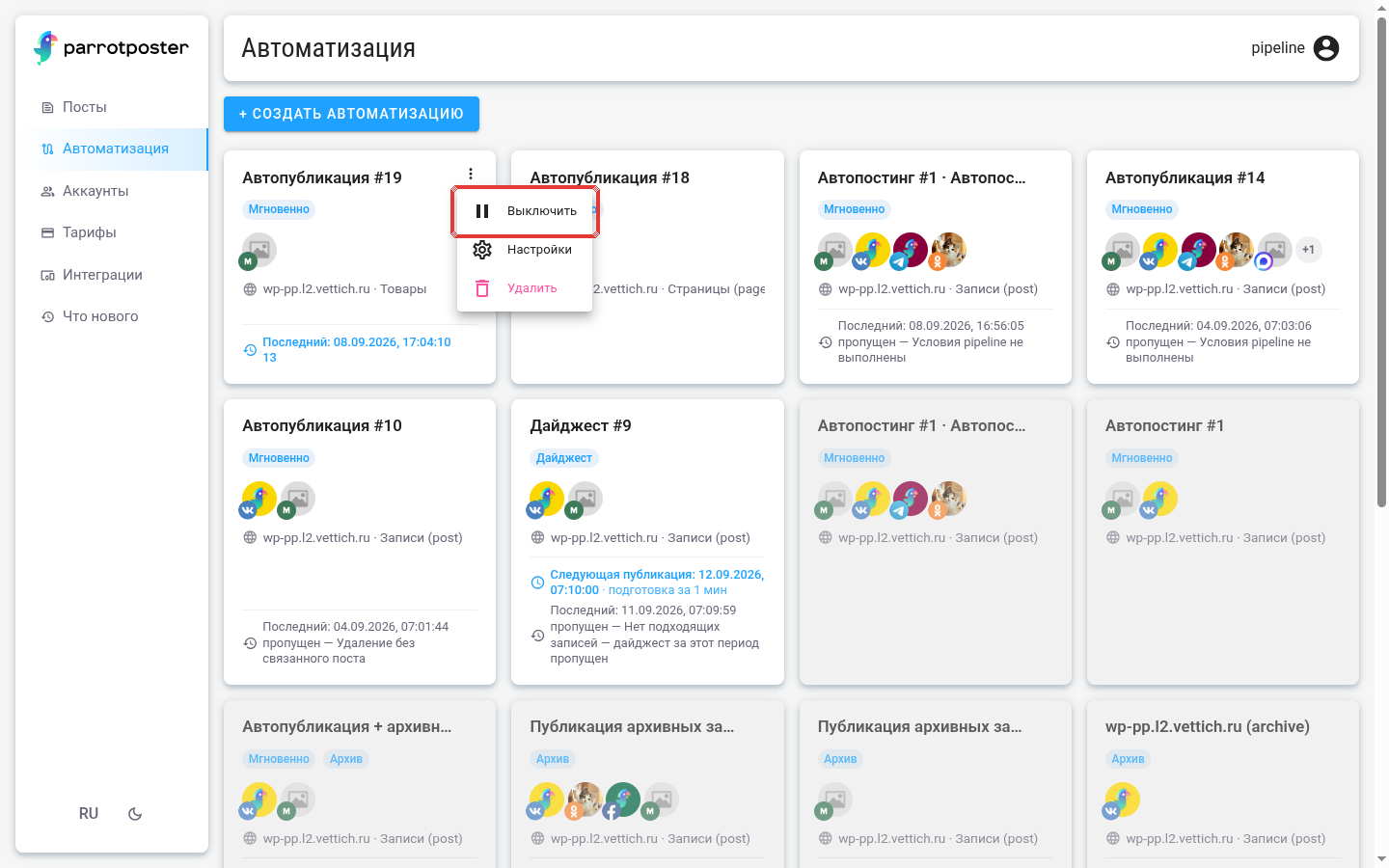
You do not have to set up a created automation again: all parameters can be changed. Automations are listed under Automation; each card shows the mode, the source (site and record type, or feed), the number of accounts, the time of the next publication and the result of the last run. The card menu has Enable / Disable, Settings and Delete.
Click a card to open the automation. At the top: the name (you can change it), the status Enabled / Disabled and action buttons.
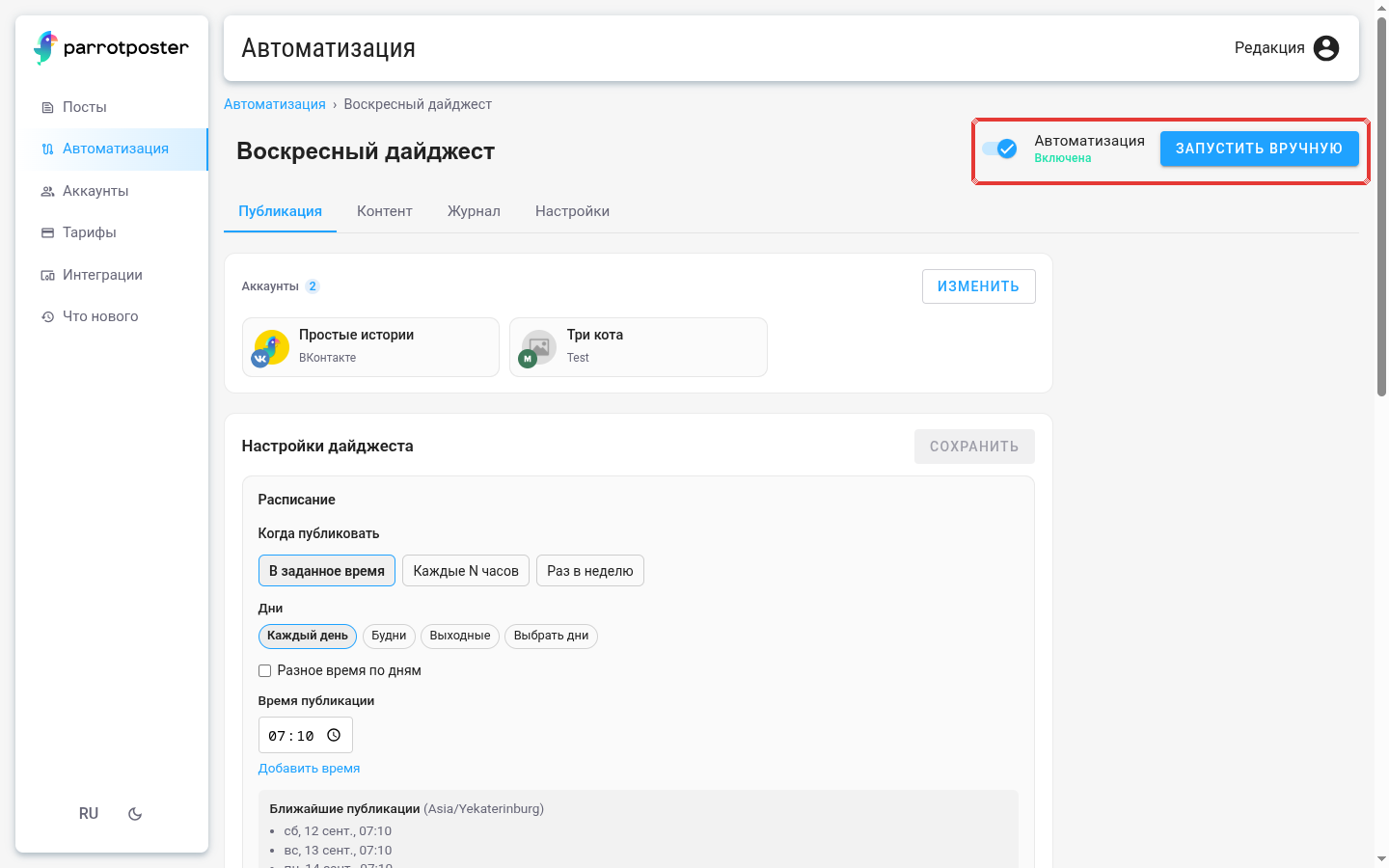
Tabs: Content, Publishing, Journal, Settings. Publishing opens by default.
Tips
Any change affects next runs and events. Posts already created, including those scheduled for the future, stay as they are: accounts, text and time are fixed when a post is created. The text of an existing post changes only if the site item it was created from is edited.
Content
This holds what were the Record selection and Template steps in the wizard:
- Which records to publish — selection conditions. If you clear all conditions, all records of the chosen type are published;
- the publication template: text, media, link, per-network options, AI.
The save buttons are Save selection rules and Save template in the block header. If there are unsaved changes, a dot and the label Unsaved changes appear next to the block.
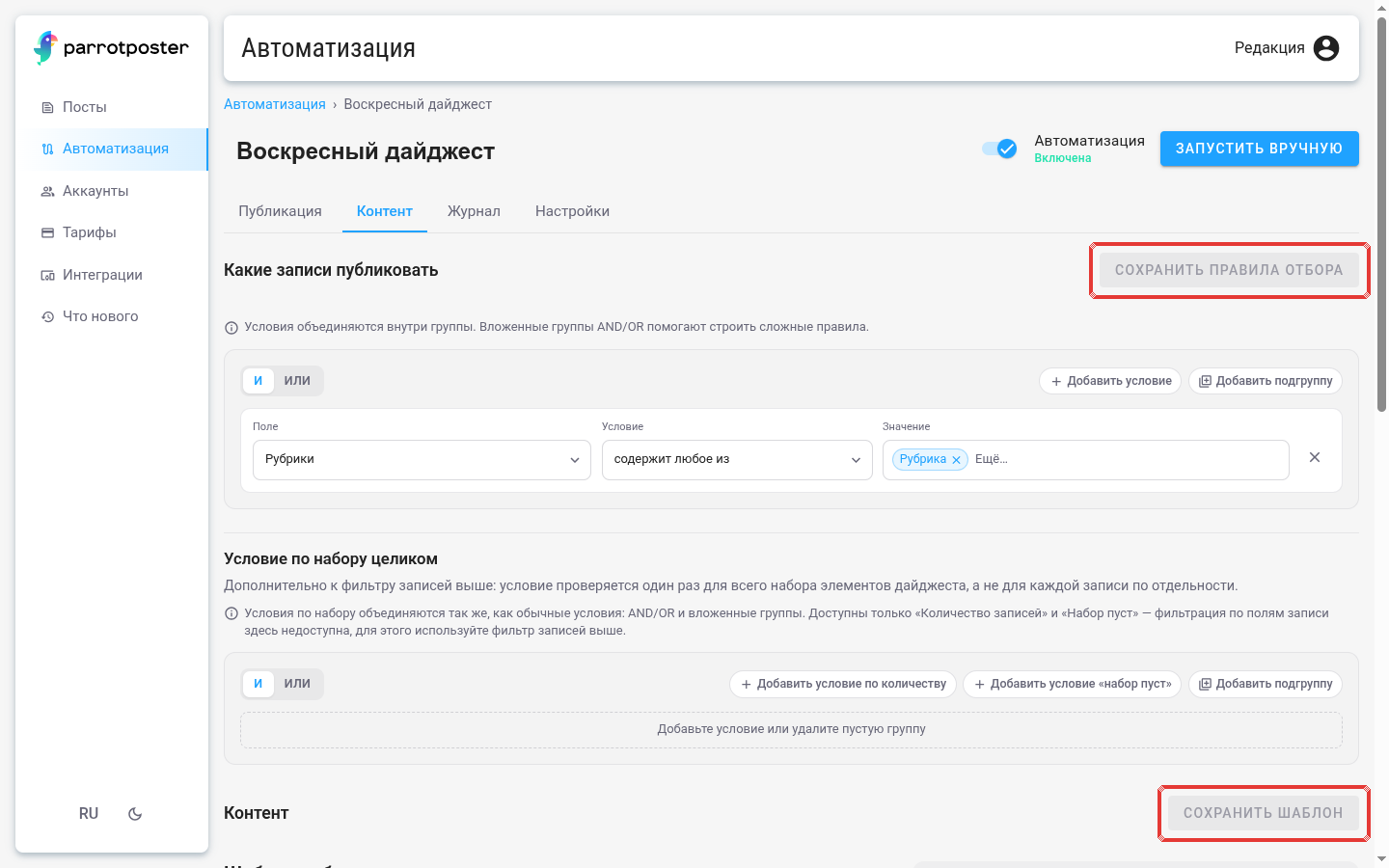
The preview uses fresh source items. If none match because of a filter, a hint tells you to relax the conditions.
Publishing
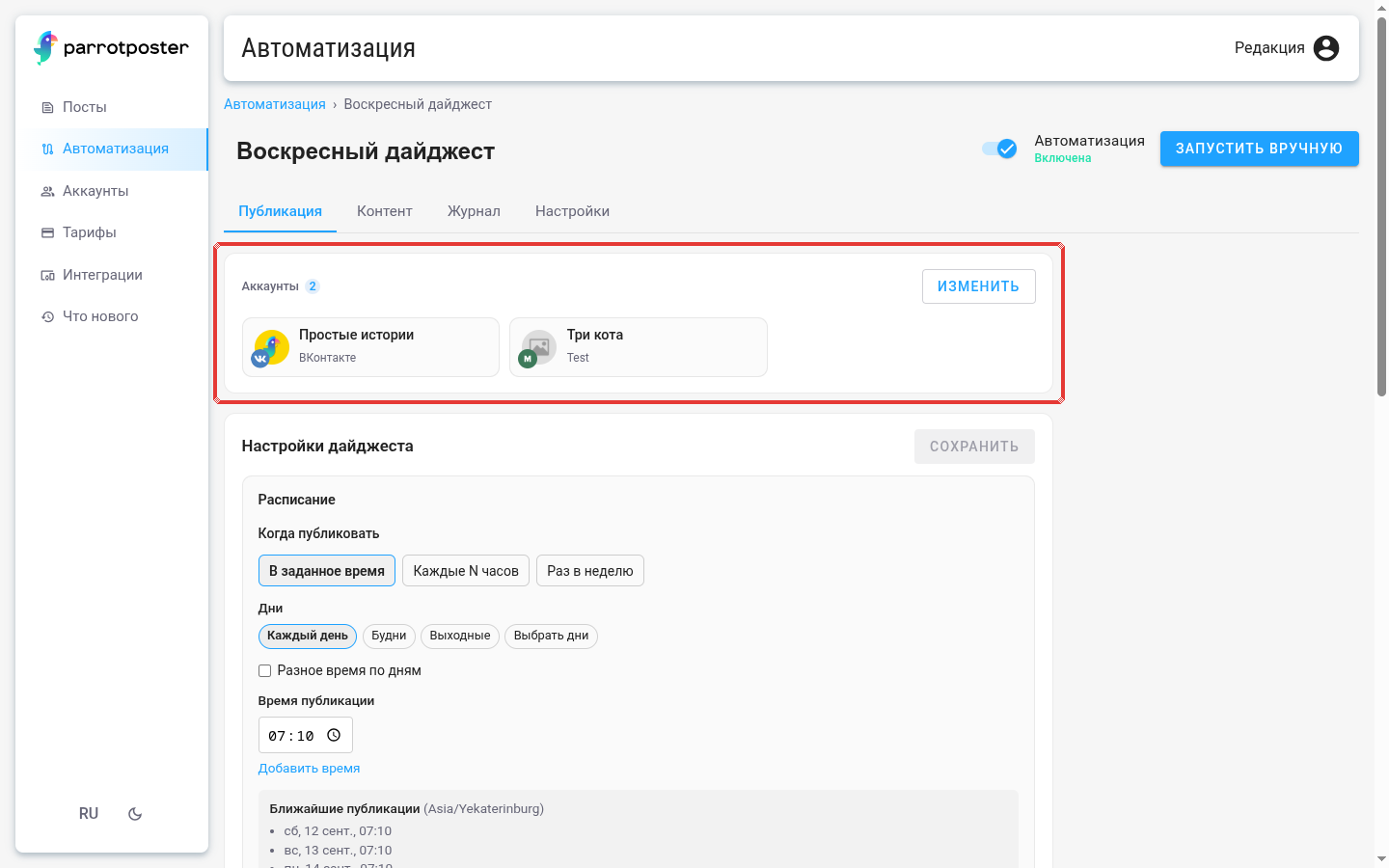
The tab has three blocks, each with its own Save button:
- Launch — when the automation fires. For Instant and Hybrid it is the When content appears or changes block (Immediately on change in Hybrid) with a Delay setting and the Skip when relevant fields did not change / Run on every event switch. For Archive, Hybrid and Digest — the schedule, When archive is exhausted, sorting, the digest window, Start early (described in modes). For RSS this is also where the feed status and RSS source settings are (details);
- Accounts — where posts go (Edit button, then Save). An account must be active;
- Publishing rules — timezone, allowed hours and minimum spacing between posts (details).
Journal
The run history. Columns: Date & time, Trigger, Status, Event (create, update or delete of an item), Source item (item title), Window (for digests), Outcome (skip reason or error code), Duration. You can filter the list by Status and Trigger. The journal refreshes itself: faster while a run is in progress and slower when idle.
Click a row to open details: Execution steps (Source fetch, Scope filter, Dedup check, Publish coordinator, Template render, AI postprocess, Post create, Delivery), a link to the created Post, and for a digest Included items. The Run again button repeats the run.
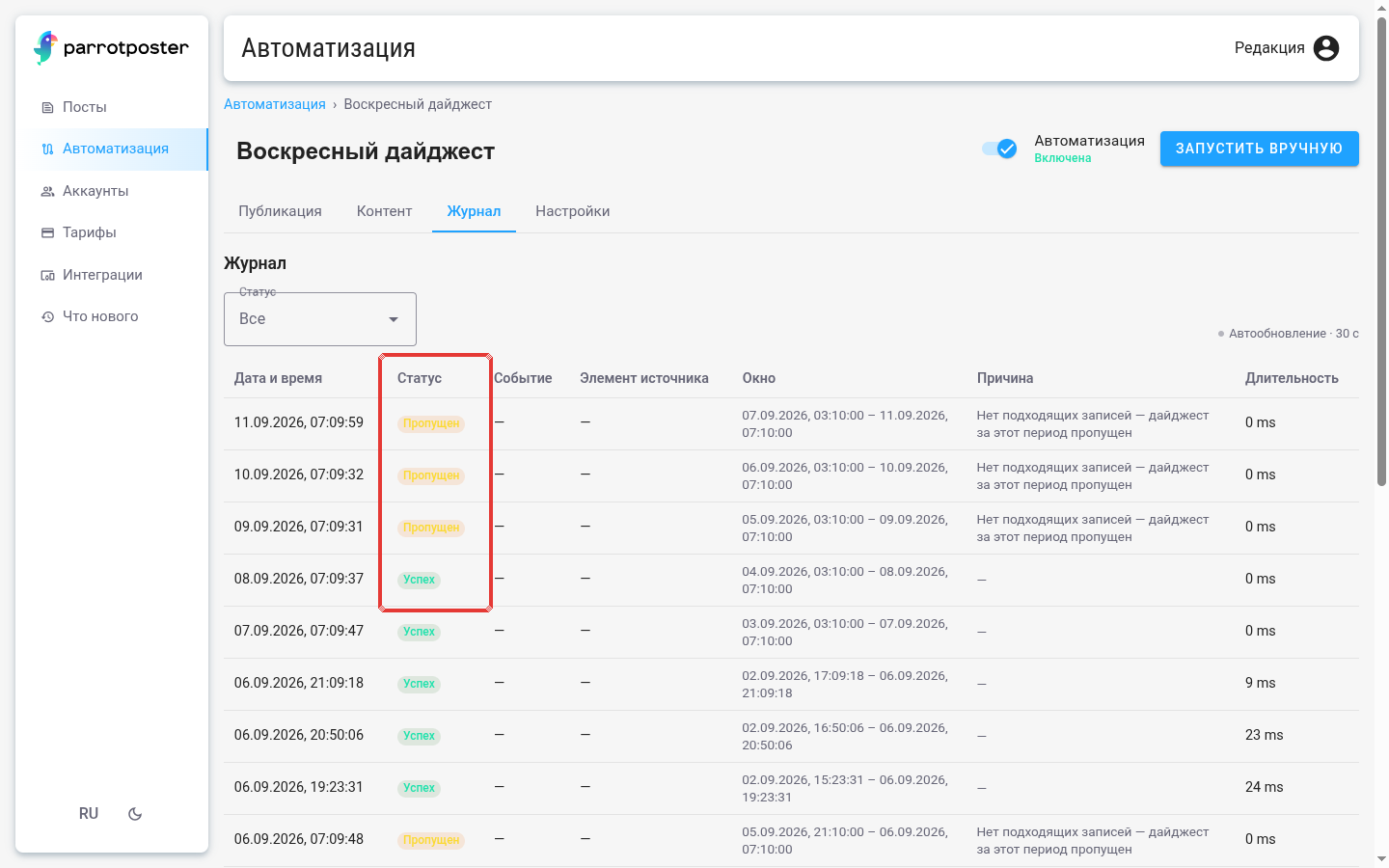
History is kept for a limited time (up to 30 days, depending on the result), so steps may be unavailable for old runs.
Run statuses
| Status | Meaning |
|---|---|
| Success | The post was created and sent to social networks (or updated/deleted following an item change) |
| Skipped | The run intentionally published nothing: see skip reasons |
| Error | Something went wrong — open the row and read Error details, see troubleshooting |
| Running | The run is still in progress |
| Waiting for plugin poll | The site has not picked up the task yet — see troubleshooting |
Success means the post was created. Delivery to the social network is shown by the Delivery step and by the post's own status under Posts.
Manual run
The Run manually button (in some states Run now) exists where there is a schedule: Archive, Hybrid (the archive part runs) and Digest. Instant mode has no manual run: such an automation fires only on events.
- It publishes the next item immediately without waiting for a slot. Allowed hours apply, the minimum interval does not.
- For a digest ParrotPoster asks for confirmation: a manual run moves the reference point, and items already included in this digest will not appear in the next scheduled one.
- It is unavailable while another run of this automation is in progress or while it is disabled.
Disable, resume, delete
- Disable (card menu or the status in the header). Publishing on events and on schedule stops. Items that appeared while it was disabled are not made up later by Instant mode. Posts already created and scheduled are not cancelled and go out at their time; you can remove them only by deleting the post itself. The rule and history remain, and you can edit the template. Enable turns it back on: the schedule is counted from the current moment, missed slots are not made up.
- Archive finished / On pause is not a malfunction: suitable items ran out. The Resume button turns the schedule back on (for example, after new items appear). Enabling and disabling does not lift this pause.
- Delete — the rule disappears. Posts already created (including scheduled ones) remain and go out.
If the site was disabled
If a site is disabled (for example, in Integrations in the cabinet), all automations of that site are paused. The Automation page shows the message Autoposting from … is disabled.
- In the cabinet that message has a Go to Integrations button.
- In the WordPress plugin the same message has a Reconnect button: click it and the site is connected again (Site reconnected).
The automations themselves are not deleted.
Settings
The Settings tab shows Mode, Site (or Feed for RSS), Content type, accounts and the creation date. The mode cannot be changed.
The only thing you can change here is the Publication source: another record type within the same site. The site and connection are fixed. Before saving, ParrotPoster checks that the new source fits: it must have all the fields used by the template, the selection conditions and the archive sorting. If something is missing you get a message like The source does not provide fields currently in use. For another site create a new automation.
Automation posts
In Posts and in the calendar such posts have an origin label, for example Automation · Instant. Opening a post, you can go to the automation and to the run in the journal. The Post origin filter has the values All, From automation, Manual.
Editing an already created post in the cabinet changes that publication only, not the template of future ones. To change the next posts, edit the template on the Content tab.